Connecting a device with an Ethernet cable means plugging one end into the device and the other into a free port on your router or network switch. Most computers then connect on their own. A cable is often steadier than Wi-Fi, which helps with calls, large downloads and games. This guide adds a worked example, common situations, a troubleshooting table and a glossary.
What You Need
- A network cable long enough to reach comfortably without being pulled tight.
- A device with a network port. Many thin laptops lack one and need a small adapter that the maker supplies or recommends.
- A free numbered port on the router or switch, usually found on the back.
Steps to Connect
- Locate the network port on your device. It looks like a slightly wider telephone socket.
- Locate a free port on the router. Avoid the one labelled for the internet or provider line unless the guide says otherwise, as that is for the modem connection.
- Hold each cable end with the small clip facing the right way and push it in until it clicks.
- Look for small lights near the port. A steady or blinking light usually means a link has formed.
- Wait a few seconds for the device to show a connected status.
- Open a web page to confirm it works.
- If the device also has Wi-Fi, it will normally prefer the cable. Check its network settings if you want to confirm which is in use.
Cable Care Tips
Route the cable along walls or under rugs only where it will not be stepped on or bent sharply. Do not pull on the cable itself when unplugging; hold the plug. Keep it away from sharp edges and doorways where it can be crushed.
If It Does Not Work
| Symptom | Check |
|---|---|
| No light at the port | Reseat both ends or try another port |
| Light on, no internet | Reboot the router and check the modem link |
| Intermittent drops | Try a different cable; look for damage |
| Device ignores cable | Check the device’s network settings and the maker’s guide |
Where cables make the most sense. A cable helps most with devices that stay in one place and use a lot of data: desktop computers, game consoles, smart televisions and media boxes. It also helps with video calls in a room where Wi-Fi is weak. For phones and tablets that move around, Wi-Fi remains the practical choice.
If the router has too few free ports, a small network switch adds more. Follow the switch maker’s instructions for power and connection, and place it where air can circulate around it.
Worked Example: Wiring a Desk and a Television
This is an invented home layout. The router sits in the hall, a desktop computer is in the next room, and a television is across the living room. Begin by measuring each route along skirting boards and door frames, not in a straight line, and add some slack at each end. Buy or choose cables a little longer than the measured routes. For the desk, plug one end into the computer’s port and the other into a free router port, leaving a gentle loop behind the desk so the plug is not strained. Check the port lights and open a web page. For the television, the straight route crosses a doorway, so route the cable along the top of the door frame or beside the skirting board, held with clips made for network cable, and avoid placing it where it will be walked on. Plug into a second free router port, then open the television’s network settings and select the wired connection if it does not choose it automatically. If the router runs out of ports, add a small switch near the router and connect both devices through it, following the switch’s manual.
Common Scenarios
Laptop with no network port
Use an adapter the laptop maker supplies or recommends, and plug it in before connecting the cable. Check the adapter’s guide for supported connections.
Game console in another room
Plan the cable route first. If the run is long or awkward, a cable along walls beats one across the floor, and a switch near the console can serve several devices.
Home office with video calls
A wired link avoids the drops that walls and neighbors’ networks can cause on Wi-Fi. Test with a short call and keep Wi-Fi on as a backup.
Renting and unable to drill
Use removable clips that follow the clip maker’s guidance for the surface, and avoid running cables across doorways where they can be trapped.
Mistakes to Avoid
- Plugging into the internet port by mistake. That port is for the line from your provider, and your device will not get a normal connection from it.
- Forcing the plug. If it does not click in, check the orientation and the port shape before pushing again.
- Bending the cable sharply. Tight kinks can damage the wires inside and cause drops.
- Pulling on the cable. Hold the plug body when removing it, since pulling on the cable damages the clip and wires.
- Running cables beside mains cables for long stretches. Keep a sensible gap, and follow local rules for any fixed wiring, which belongs with a qualified electrician.
More Troubleshooting
| Symptom | Likely cause | What to try |
|---|---|---|
| Port light on but device says no network | Device network setting off or in a wrong mode | Check the wired network setting, and switch the device off and on |
| Slow compared with Wi-Fi | Port or cable limits, or a busy network | Try another port and cable; check the router guide for port speeds |
| Plug falls out | Broken clip on the plug | Replace the cable, since a damaged plug will keep loosening |
| Works only sometimes | Damaged cable or loose port | Swap cables, try another port and look for crush marks |
Care and Upkeep Over Time
Network cables are tough but not indestructible. Every few months, look along each run for crush marks, kinks and cracked plugs, and replace any cable that looks damaged. Label both ends with tape or tags so you know which cable serves which device, which saves time when you troubleshoot. Keep ports free of dust, and keep switches and routers in places where air can move around them. When you rearrange furniture, check that no cable is trapped under a leg. If you change your router, note which ports your devices use, so you can reconnect them quickly.
Glossary
- Ethernet: the standard for wired local networks.
- Router: the device that links your home network to the internet.
- Switch: a device that adds extra wired ports to a network.
- Modem: the device that connects to your provider’s line; some routers include one.
- Port: the socket where a cable plugs in.
- Adapter: a small connector that gives a device a network port it lacks.
Cable Categories and What the Names Mean
Ethernet cables are labeled with a category such as Cat5e, Cat6, Cat6a, or Cat7, and the label tells you the performance the cable is built to support. Cat5e handles gigabit speeds over typical home distances and is still common. Cat6 offers more headroom against interference and can support higher speeds over shorter runs. Cat6a is built for higher speeds over longer distances with better shielding against crosstalk. For most homes, Cat5e or Cat6 is plenty, because the internet plan, the router, and the device port usually limit speed before the cable does.
The category is usually printed along the jacket. Check it before you buy, and avoid unlabeled cables of uncertain origin. Match the cable to the slowest part of your chain. A fast cable does not make a slower router or a slower device port perform better.
Shielded Versus Unshielded
Unshielded twisted pair, often called UTP, is the standard for homes and works well when the run is away from heavy interference sources. Shielded cables, labeled STP or FTP, add a metal layer that helps in electrically noisy places, such as next to large motors or power cables. Shielding only helps if the connectors and equipment are grounded properly, so a plain UTP cable is the simpler choice for most households.
Picking the Right Length and Routing Path
Measure the actual path the cable will follow, not the straight line between the two devices. Add extra for corners, climbing up and down along walls, and slack at each end so you do not strain the plug. A rule of thumb is to add a generous margin, and pick the next standard length. Ethernet over twisted pair has a general limit of about 328 feet or 100 meters per run, which is far beyond what most apartments and houses need.
Plan the route before you buy. Avoid running the cable alongside mains power cables for long stretches, because electrical noise can degrade the signal. Cross power lines at a right angle if you must. Keep the cable away from heat sources, sharp edges, and spots where doors or furniture will pinch it. Use cable clips, raceways, or under-carpet channels for a tidy result, and leave a gentle curve at corners instead of a tight bend. Respect the minimum bend radius, which is commonly about four times the cable diameter, though you should check the manufacturer details.
Using Adapters, Switches, and Extra Ports
When your router runs out of ports, a small network switch gives you more. Plug one cable from the router into the switch, and then connect devices to the switch. A basic unmanaged switch works without setup and needs only power. Look for gigabit ports to match modern routers. For laptops without a port, a USB or USB-C Ethernet adapter adds one. Choose an adapter with a speed rating that suits your plan, and check driver support for your operating system.
- Use a coupler only when you must join two cables, since each connection can add some loss.
- Avoid cheap unbranded switches with no safety certifications, and follow the maker’s guidance for power and ventilation.
- Label both ends of long runs so you can trace them later.
- Powerline adapters and Wi-Fi extenders are alternatives when running cable is not possible, though speeds vary with home wiring and interference.
Checking That the Connection Is Healthy
After plugging in, confirm that the link lights on the router port or the device port turn on. A steady or blinking light usually shows that a connection exists. Open your device network settings and look for the wired connection, then try loading a website. Many systems show the link speed, such as 100 Mbps or 1 Gbps, and a result of 100 Mbps on a gigabit setup suggests a damaged cable, a bad connector, or an older device. Swap the cable with a known good one to isolate the cause.
Run a speed test over the wire and again over Wi-Fi to see the difference, but remember results vary with your plan, the test server, and the time of day. If speeds are far below your plan, restart the router, test another port, and contact your provider if the problem persists.
Safety and Wiring Notes
Ethernet carries low voltage, but safe habits still apply. Do not run cables across walkways where people can trip, and secure loose cable along walls. Keep the cable away from hot surfaces and from outdoor moisture unless it is rated for outdoor use. Never run network cable through the same conduit as mains power wiring unless local code allows it. If a project involves drilling through walls or running cable in ceilings, think about hidden wires and pipes, follow local building codes, and consider a licensed professional. Unplug the power from equipment before moving it.
Cost and Time Ranges
A ready-made patch cable is inexpensive, with prices increasing for longer lengths and higher categories. A small gigabit switch or a USB adapter costs more but still falls in a modest range. Connecting a single device along a short path usually takes only a few minutes. Routing a cable around a room with clips may take under an hour, while running one through walls can take much longer and is best planned carefully. Buying a slightly longer cable than needed is often cheaper than coming up short.
Wired Versus Wireless: Choosing by Device
Not every device needs a cable, and the choice depends on what the device does. Gaming consoles, desktop computers, streaming boxes, and network storage benefit most, since they are stationary and sensitive to delay. Phones and tablets are better left on Wi-Fi. Wired links tend to give steadier latency and fewer dropouts than wireless, because they do not compete with neighbors for airtime or suffer from walls and distance. That steadiness is the main reason people wire up video calls, online games, and large file transfers.
| Device | Best choice | Reason |
|---|---|---|
| Game console | Wired | Stable delay for online play and large downloads |
| Smart TV streaming 4K | Wired if practical | Steady throughput avoids buffering |
| Desktop PC | Wired | Fixed location and consistent speed |
| Phone or tablet | Wi-Fi | Mobility matters more than the cable |
Router and Device Settings Worth Knowing
Most devices detect a wired connection and use it automatically, often switching off Wi-Fi in favor of the cable. If a device keeps using Wi-Fi, check the network preferences and move the wired connection to the top of the list. Some computers need you to disable Wi-Fi briefly to confirm the cable works. Devices usually obtain an address automatically through DHCP, so you rarely need to enter anything by hand. If you have a specific need, such as a fixed address for a printer, set a reservation in the router rather than typing values on the device, which reduces conflicts.
If you see a message such as limited connectivity or no internet, restart the router and device, confirm the cable seats with a click at both ends, and look at the router for outages. Keep the router firmware updated according to the manufacturer instructions.
Keeping Cables Neat and Safe in Shared Spaces
A tidy layout prevents accidents and damage. Bundle extra length loosely with hook-and-loop ties instead of tight plastic zip ties, which can squeeze the pairs inside the jacket. Route cables along baseboards or door frames and use covers where they cross floors. Leave a drip loop or slack so a tug on the cable does not pull the connector out. When children or pets are around, keep cables out of reach, as chewed cables can expose conductors. If a jacket is cut or a plug is cracked, replace the cable. Unplugging by pulling on the cord instead of the plug is a common way connectors break, so grip the plug and press the clip.
Working Through a Typical Weak Spot
Suppose a streaming box in the living room buffers during the evening even though the router is two rooms away. Wi-Fi in that spot may be weak because of walls or crowded channels. A cable along the baseboard can solve it, and the plan is simple. Measure the route and add a margin, buy a cable of the right category, connect one end to a router port, run the cable along the wall edge with clips, and plug the other end into the box. Then open the box network settings, confirm that it reports a wired connection, and play a long video to see if buffering stops. If it does not, test a different cable and port before suspecting the provider. Making one change at a time lets you identify the cause instead of guessing.
If you cannot cross a doorway without a trip hazard, use a flat cable designed to sit under a door gap or a low-profile floor cover. Avoid shutting a door on a standard round cable, because the pressure can damage the pairs inside and create intermittent faults that are hard to trace.
Ready to Buy? Start Here
If this guide helped you decide what to look for, these products are a place to start.
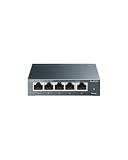
As an Amazon Associate we earn from qualifying purchases. Prices and availability are shown on Amazon.
FAQ
Does a longer cable slow things down?
Within the lengths used in a home, you are unlikely to notice any difference. Check the cable maker’s guidance for the maximum length.
Do all cables work the same?
Cables are made in different categories. For everyday home use, a recent category is generally sufficient, but check what your router and plan support.
Can I run a cable through a wall?
Drilling and fixed cabling involve hidden pipes, wires and building rules. Ask a qualified professional and follow local rules rather than improvising.
Do I need to change settings after plugging in?
Usually not. Most devices find the network on their own. If not, check the wired network option in the device’s settings and the maker’s guide.
Can I use Wi-Fi and a cable together?
Many devices can, but they normally prefer the cable. Some let you choose which to use. Leave Wi-Fi on as a backup if you move the device around.
What is the difference between Cat5e and Cat6 cable?
Both support gigabit speeds over typical home distances. Cat6 has tighter specifications and better resistance to interference, so it offers more headroom for higher speeds on shorter runs. For most households, either works. Choose based on price, length, and future plans, and check the label.
How long can an Ethernet cable be?
The general limit for twisted pair Ethernet is about 328 feet or 100 meters per run. Most homes stay well within that. Past this length, the signal weakens and you would need a switch or repeater in the middle. Always measure the actual route, not the straight line.
Why is my wired connection slower than expected?
Common causes include a damaged or low-grade cable, a device port limited to 100 Mbps, a router issue, or a slow plan. Try another cable and port, check the reported link speed in your settings, and restart the router. If the problem remains, contact your provider.
Can I use an Ethernet adapter with a laptop that has no port?
Yes. USB and USB-C Ethernet adapters add a wired port to laptops and tablets. Pick one that matches your connection type and speed needs, and confirm driver support for your system. Plug it in, connect the cable, and check your network settings.
Do I need a switch to connect several devices?
If your router has enough free ports, no. If you run out, an unmanaged switch adds more ports without setup. Connect one cable from the router to the switch, then plug devices into the switch. Choose gigabit ports to match a modern router.
The Short Version
Plug one end into your device and the other into a free router port, wait for the light, and test a web page. If it fails, reseat the plugs, try a different port or cable, and consult the maker’s instructions.