Disclosure: As an Amazon Associate, umtsmarttool.com earns from qualifying purchases. Links to Amazon on this page are affiliate links; they cost you nothing extra. Listing details such as price and availability change often, so check the current Amazon listing before you buy.
The first generation of robot vacuums wandered at random and hoped to cover the floor by luck. A mapping robot works differently: it builds a plan of your home, remembers where the rooms are and drives in organised lines, so a run is predictable and finishes sooner. The best robot vacuums with mapping also hand you control through an app, where you can name rooms, send the robot to one spot and draw lines it must not cross.
This guide is for anyone moving up from a basic robot, or comparing options from Roomba and from brands that are not Roomba. We look at five current models from iRobot, Shark, Roborock, Ecovacs and Dreame, explain the difference between lidar and camera navigation, and show how virtual walls, schedules and voice assistants fit into daily use. The aim is to help you choose smart features you will actually use.
Quick Comparison
| Product | Best for | Main point | Link |
|---|---|---|---|
| iRobot Roomba j7+ j755020 | Roomba users who want smart maps | Camera navigation and Imprint mapping | Check on Amazon |
| Shark AI Robot Vacuum RV2001 | Neat grid cleaning without a dock | Home mapping and room selection | Check on Amazon |
| Roborock Q5 Pro | First step into lidar mapping | Map-based zones in a compact package | Check on Amazon |
| Ecovacs Deebot N30 Omni | Voice control and station convenience | Lidar map with an all-in-one dock | Check on Amazon |
| Dreame X40 Ultra | Detailed multi-room control | Rich app with many per-room settings | Check on Amazon |
In this guide
How These Options Were Chosen
This selection is drawn from manufacturer listings and published specifications. We have not used these products ourselves, so we describe features as the makers present them. We looked for robots that build a lasting map, let you divide it into rooms, support no-go zones and work with the common voice assistants, across a range of docks and navigation methods so you can see the real differences.
We also grouped the list by how much hardware surrounds the map. Two entries are plain robots with strong software, two are full stations that add washing, and one sits in between. That grouping lets you decide whether you are shopping for the brain, the dock or both, which is the question most buyers skip.
Keep in mind that map quality depends on your home as much as on the model. A tidy, well-lit space with open doors gives any of these robots an easier job than a cluttered one, and a good first run is worth the few minutes it takes.
The Best Robot Vacuums With Mapping for Smart Homes
iRobot Roomba j7+ j755020
If you want a Roomba that remembers your home, the j7+ is the point to focus on. It uses a front camera and the Imprint Smart Mapping system to learn rooms, and it lets you tell the robot to clean one room, avoid another or leave a gap around a pet bowl.
It works with the usual voice assistants and has a Clean Base that empties the bin. The app also offers scheduling and cleaning suggestions based on how you use it.
A camera map can need a little light to work well, and it is less detailed than a laser-based map in dark rooms. Skip it if you want a mop or the sharpest possible floor plan.
Shark AI Robot Vacuum RV2001
The Shark RV2001 is a good example of mapping without a bulky dock. It scans the home, builds a map and cleans in tidy rows, which Shark calls matrix cleaning, instead of ricocheting off furniture.
The SharkClean app lets you pick a room, set a schedule and use voice assistants. It is an easy alternative to a Roomba for people who want maps but not a station.
Because it has no emptying dock, the app shows you what to clean, but the bin is still yours to empty. Skip it if you want hands-free emptying, or if you want advanced multi-floor map storage.
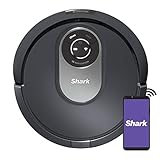
Roborock Q5 Pro
The Q5 Pro is a compact way into laser-based mapping. Its navigation measures the room as it moves, then saves the result in the Roborock app, where you can split rooms, set no-go zones and choose a cleaning order.
It is an appealing choice for a flat or a small house with several rooms, where you want to send the robot only to the kitchen or only to the bedroom. Check the listing to confirm map and mop features for the exact version you buy.
Because it lacks a station, some tasks stay manual. Skip it if you want self-emptying or self-washing.
Ecovacs Deebot N30 Omni
The Deebot N30 Omni takes mapping and adds an Omni station, so the same map governs vacuuming and mopping. You can set zones by room, define walls and use voice control through major assistants.
It appeals to a household that likes to talk to its devices: asking it to clean one room by name beats opening an app. The Ecovacs Home app also lets you adjust power per room.
The trade-off is bulk and upkeep, as with any station. Skip it if you do not need mopping, or if your internet connection is unreliable, since much of the convenience depends on the app.

Dreame X40 Ultra
Dreame’s X40 Ultra is aimed at people who like fine control. The app lets you set suction, water level and cleaning order for each room, and its mapping supports no-go zones and no-mop zones.
It suits a large, multi-room home where each space needs different treatment, such as a rug-filled study next to a tile kitchen. Its station empties, washes and dries.
It is a lot of machine and a lot of settings. Skip it if you want a simple press-and-go experience or you have a small space.
Best for Roomba Fans Who Want a Smarter Map
The Roomba j7+ keeps the familiar iRobot ecosystem and adds room-aware cleaning. It is the gentlest step up from an older Roomba.
Best for Voice Assistants
The Ecovacs Deebot N30 Omni and the Roomba j7+ both work with common voice assistants, so you can ask for a specific room to be cleaned.
Best Without a Dock
The Shark RV2001 and Roborock Q5 Pro both give you mapping without the footprint of a station, which makes sense for smaller homes.
Best for Many Rooms
The Dreame X40 Ultra stands out where you need to control each room separately.
How to Choose a Robot Vacuum With Mapping
Begin with the navigation system. Camera-based robots recognise objects and rooms but may need light. Laser-based robots measure distance and can work in the dark. Neither is perfect, and the right one depends on your home.
Virtual walls and no-go zones
Virtual walls are lines you draw in the app that the robot will not cross. Use them to protect pet bowls, cables and fragile areas. Some models also offer no-mop zones for carpet. If you do not use an app, magnetic strips or boundary markers are an alternative on older models.
Multi-room maps and floors
Check how many maps the robot stores if you have two levels. Some save several floors, while others keep just one. If you have five or more rooms, look for room splitting and merging in the app.
Smart assistants and programming
Voice commands and schedules make a robot feel part of the home. Check that your assistant of choice is supported. A programmable schedule lets you run the robot while you are out.
Paths, tracking and accuracy
Mapped robots plan efficient paths rather than random ones, and the app shows live tracking so you can see where the robot is. Accurate maps need a clear first run, so tidy the floor and open internal doors.
Lidar versus camera in daily use
A lidar robot spins a small laser tower on top and measures the distance to walls and furniture, so it keeps working at night and behind closed curtains. The tower adds height, though, and can stop the robot fitting under a low sofa. A camera robot sits lower and can identify objects such as cords, but it relies on enough light and raises privacy questions that some owners prefer to avoid. Neither system is better in every home, so match it to your furniture and habits.
Cloud accounts and app support
Every smart robot needs an account and a maker that keeps updating the app. Look at how long a brand has supported its older models, and read the app terms. A strong app is the thing you will use every day, much more than any spec on a box.
Setting up your first map
The first run decides how good the map will be. Open interior doors, switch on the lights if the robot uses a camera, and clear loose items from the floor. After the run, check the layout in the app and split or merge rooms until the names match how you think about your home. Then add your no-go zones, one at a time, and run a short test to confirm the robot respects them.
What happens when you rearrange furniture
Maps are not set in stone. Most robots update their picture of the home as they work, but a major change, such as a new sofa or a moved wall of boxes, may need a fresh map. Read the app notes on re-mapping and save an edited copy of the map before you begin again, if the model supports it.
How much do the smart features add?
Be honest about your habits. If you will only press one button, a simpler robot may suit you. If you love scheduled runs by room, voice commands and live tracking, mapping is where the extra value sits.
A frequent mistake is paying for features you will not use, like multi-floor maps in a one-level flat.
Installation, Safety and Legal Notes
Follow the maker’s setup steps for the dock and the app. Keep the dock on a flat surface away from stairs, and let the first mapping run happen under supervision. Use approved chargers and batteries only. If a dock needs a new outlet, call a licensed electrician.
Camera and lidar robots store maps and possibly images through a cloud service, so read the privacy policy and adjust settings. Local rules may apply to recording devices in shared or rented spaces.
Care and Troubleshooting
| Problem | Likely cause | What to do |
|---|---|---|
| Map looks wrong | Closed doors or moved furniture on the first run | Open doors and remap |
| Robot ignores a no-go zone | Map out of date | Redraw the zone and save |
| Lost connection | Wi-Fi range or band | Move the router closer or check the maker’s network guidance |
Wipe the sensors and cameras gently with a dry cloth on the maker’s schedule. Dust on a sensor is a common cause of odd behaviour.
Privacy, Cameras and Where Your Map Data Lives
A robot that builds a map of your home is gathering information about its layout, your room names and, on some models, images from a camera. That is worth thinking about before you connect it. Camera-based robots like the Roomba j7+ use images to recognize objects, and makers typically say how that data is processed and stored. Lidar robots measure distances with a laser and generally do not capture pictures of your living space, though their apps still store room layouts.
Read the privacy policy of the companion app, and look at which permissions it asks for on your phone. Check whether you can delete your map and account, whether data is stored in the cloud or on the device, and whether any camera feed is optional. If you are uneasy, look for a model with a physical camera cover or a lidar system, and keep the robot out of bedrooms and bathrooms by using no-go zones. Use a strong, unique password for the account.
Network and Router Requirements
Mapping robots depend on a steady home network for their app features. Many connect only on a 2.4 GHz Wi-Fi band, which can be a snag if your router combines bands under one name. During setup, you may need to move your phone to the 2.4 GHz network or temporarily split the bands. Place the router so the signal reaches the dock and the rooms the robot will visit, since a weak signal causes dropped commands and map syncing problems.
- Check the supported Wi-Fi bands in the listing before buying.
- Keep the robot and dock within a decent signal range of the router.
- Update the robot’s firmware when the app offers it.
- Know that guest networks and some office-style networks block device discovery.
Once a map is saved, most robots can clean without internet, but remote start, voice commands and map editing usually require a connection. Plan for that if your connection is unreliable.
Managing Your Map Over Time
A map is not a one-off task. After the first run, spend a few minutes naming rooms, splitting or merging areas and drawing no-go lines. Use clear names, such as Kitchen or Hallway, so voice commands work as expected. If the robot divides an open-plan space oddly, adjust the borders so it cleans in logical sections, and save the layout once you are satisfied.
Keep-out zones deserve special attention. Draw them tightly around pet bowls, cable clusters and delicate objects, and revisit them when you move furniture. If a robot begins to get lost, a quick reset of a single room is often easier than rebuilding the entire map. Some apps let you keep multiple saved maps or back them up, which is useful for homes with more than one floor.
Tricky Layouts and Surfaces
Mapping works best in tidy, evenly lit rooms, but real homes are rarely that kind. Very dark floors can confuse the cliff sensors on some models, which treat a dark patch as a drop and stop. Glass doors and mirrors can create odd readings for laser systems, and clutter on the floor can make a camera robot stop and report an obstacle. Open-plan areas with no walls may need virtual boundaries so the robot knows where to stop.
Stairs are the biggest safety question. Robots detect drops with cliff sensors, but sensors can fail on glossy or very dark surfaces, so keep a gate or a barrier at the top of any stairway you consider risky. If you have several floors, carry the robot manually and load the right map for each level before starting.
What Changes When You Upgrade From an Older Robot
Moving from a random-bump robot to a mapped one changes how you think about cleaning. Instead of running a blind cycle, you target rooms, schedule by zone and receive reports on what was covered. Expect a learning curve: the first run is slow while the robot explores, and you will probably adjust zones a few times. The reward is a more predictable routine and fewer missed spots.
Plan for a few housekeeping changes too. Clear the floor before the first mapping run, open interior doors, and switch on lights in rooms that are normally dim. Name the rooms right away, since schedules and voice commands depend on those labels. Keep the dock in a spot with good Wi-Fi and enough room to approach. If you share the home with others, agree on a schedule so the robot is not started while someone is working or sleeping, and show everyone how to pause it from the app.
It is also worth deciding up front what the robot should not do. Mark delicate rugs, pet feeding areas and cable-heavy desks as keep-out zones, and check the map after the first week. Small tweaks early make daily use far smoother.
Frequently Asked Questions
Is mapping worth it on a small flat?
It can be, because zones and schedules save time. If your home is a single room, a basic robot may do.
Are there good robots that are not Roomba?
Yes. Shark, Roborock, Ecovacs and Dreame all sell mapped models with strong apps.
Do these work with Alexa?
Many do, but check the listing for the exact assistant support in your model.
What is lidar?
It is a laser sensor that measures distance to build a map, even in low light.
Can I stop the robot from entering a room?
Yes, through no-go zones or virtual walls in the app.
Does it need Wi-Fi?
Most mapping features rely on the app, so a stable home network is important.
Will the robot remember my map after a power cut?
Most store maps in the robot or the cloud account, but behaviour varies, so check the app notes for your model.
Do I need a smart speaker to use the voice features?
Yes, a compatible speaker or phone assistant is needed, and setup steps are in the maker’s manual.
Do robot vacuums with cameras send pictures to the cloud?
It depends on the maker and model. Some process images on the device, while others may use cloud services for certain features. Read the privacy policy, check the app settings for camera options, and look for a physical cover or a lidar model if this concerns you.
Why will my robot not connect to my home Wi-Fi?
Many robots support only a 2.4 GHz band, and setup can fail if your phone is on 5 GHz or if the router combines both bands. Move closer to the router, split the bands temporarily, and check the password and supported networks in the manual.
Can more than one person control the same robot vacuum?
Many apps allow a household to share access, either by inviting other users or by logging into the same account. Check the app for a sharing feature and consider the privacy implications of who can see the map and schedule.
Can mapping robots handle black carpets or dark floors?
Some cannot, because cliff sensors may read a dark surface as a drop. Makers sometimes note this limit in the manual. Test a small area first, use no-go zones if the robot stops, and check the listing for details on dark flooring.
Bottom Line
A mapped robot saves time and effort, and the right one depends on how you like to control your home. The Roomba j7+ is the easy upgrade for Roomba users, the Shark RV2001 and Roborock Q5 Pro keep things compact, the Ecovacs Deebot N30 Omni brings voice control and a station, and the Dreame X40 Ultra gives deep room-by-room control.