The best spot for a Wi-Fi router is usually a central, raised, open location, away from thick walls and large metal objects. A few small moves often make a noticeable difference, and none of them need special tools. This guide walks through a simple way to find a good position, then covers common home scenarios, mistakes and what to try when a room stays weak.
Why Location Matters
Wi-Fi signals spread outward from the router’s antennas, much like light from a lamp. Anything solid in the way weakens the signal, so a router tucked in a corner cabinet sends much of its strength toward the outside wall instead of toward your rooms.
Before you move anything, note where you use the internet most: the sofa, the desk, the bedroom. The goal is to place the router so those spots are close and have few obstacles between them and the device.
In this guide
Steps to Find a Good Spot
- Sketch a rough floor plan on paper and mark the rooms where you use the network most.
- Check how far the router can move. Its cable to the modem or wall socket limits your choices, so see whether a longer cable is practical.
- Choose a central location, ideally on the floor where most devices are used.
- Raise the router to about shelf height or higher. Floors and low furniture tend to absorb signal.
- Keep it in the open. Avoid placing it inside a cabinet, behind a television or under a pile of items.
- Check the maker’s guide for antenna direction. Many routers work best with antennas upright, but follow the instructions for your model.
- Walk to each marked room with a phone or laptop and note whether pages load smoothly.
- Adjust by a metre or so, then repeat the walk-through until the weakest room improves.
Common Obstacles to Keep in Mind
| Obstacle | Effect on signal | What to do |
|---|---|---|
| Thick masonry or concrete walls | Absorb a lot of signal | Place the router so fewer walls sit between it and busy rooms |
| Large metal items, mirrors, appliances | Reflect or block signal | Keep a gap of at least a short arm’s length |
| Fish tanks and water pipes | Water absorbs signal | Do not place the router right beside them |
| Other electronics | Can add interference | Move the router away from cordless handsets and similar devices |
Worked Example: A Two-Floor Home
Imagine a two-floor house where the internet line enters in a front hallway cupboard, the home office is at the back of the ground floor, and the bedrooms are upstairs. The router in the cupboard sends signal through a closed door, a stair wall and a floor. Here is how you might improve it.
- Draw both floors and mark the cupboard, the office, the living room and each bedroom.
- Find the point roughly in the middle of the house, in a room with open space. In many homes, that is a hallway or a landing near the stairs.
- Check whether a network cable can run from the line entry point to that spot along a skirting board or through a gap. Use flat cable designed for that purpose and follow the cable maker’s instructions. Do not drill through walls or ceilings where you are unsure what is inside them; ask a qualified professional.
- Place the router on a shelf or small table at roughly head height, not on the floor and not beside the television.
- Move through the house with a phone, opening a page in each room. Note which rooms load slowly.
- If one bedroom is still weak, move the router a short distance towards it and test again, or consider an extra access point or mesh system in that area.
The aim is a position that works acceptably in every room you care about, even if no single room becomes perfect.
Common Scenarios
Router stuck beside the modem in a corner
If the cable length limits you, a longer cable is often the simplest change. Some setups use an extension of the line through existing wiring; follow the provider’s current instructions on what you may change yourself.
Home office at the far end of a long house
For a device that stays put, such as a desktop computer, a network cable to the router is often more steady than wireless. Run it along walls and avoid tight bends.
Thick stone or brick walls
Walls like these can block most of the signal. Consider an additional access point in the far section, connected by cable where practical.
Garden or garage use
Outdoor use is a stretch for an indoor router. Place it near a window facing that area, or use a device made for outdoor use, installed to the maker’s instructions and local electrical rules.
Small Habits That Help
- Leave some airflow around the router so it does not get too warm.
- Avoid hiding it just because it looks untidy; a tidy shelf is better than a closed box.
- If one room still has a weak signal, consider a separate extender or mesh system rather than moving the router to a worse spot.
Mistakes to Avoid
- Placing it on the floor: signal travels outward and downward poorly through furniture and flooring.
- Hiding it in a metal cabinet: metal blocks signal, so the box acts as a shield.
- Stacking it on other electronics: heat builds up and other devices may add interference.
- Moving it many times in one session: change one thing at a time so you can tell what helped.
- Judging by a single quick look: signal can vary through the day as neighbours and household devices use the network, so check at the time you use it most.
Quick Troubleshooting
| Symptom | Likely cause | What to try |
|---|---|---|
| One room always slow | Too many walls or floors between it and the router | Move the router closer or add an extra access point |
| Signal drops at certain times | Busy nearby networks or household devices | Check the router’s settings guide for channel options |
| Weak signal near the router itself | Antennas folded flat or router in a cabinet | Follow the manual’s antenna advice and move it into the open |
| Router feels very warm | Poor airflow | Clear space around it and keep vents uncovered |
Glossary
- Router: the device that shares your internet connection with your home devices.
- Modem: the device that connects your home to the internet provider’s line, sometimes combined with the router.
- Access point: an extra device that adds wireless coverage and connects back to the router.
- Mesh system: a set of units that work together to cover a larger area.
- Interference: other signals or objects that disrupt the wireless signal.
Wi-Fi Bands and Why They Behave Differently
Most home routers broadcast on more than one radio band, and the bands trade range against speed. Understanding the difference helps you decide where to place the router and which devices should connect to which band.
- The 2.4 GHz band travels farther and passes through walls more easily, but it is slower and shared with many household gadgets such as baby monitors, microwaves and Bluetooth devices.
- The 5 GHz band offers higher speeds and less crowding, but its signal fades faster with distance and through walls.
- The newer 6 GHz band, found on routers that support Wi-Fi 6E or Wi-Fi 7, can offer high speeds with little interference, but its range is shorter still and your devices must support it.
In practice, place the router so that your most-used devices sit within reasonable distance and line of sight. Devices far from the router often do better on 2.4 GHz, while laptops and streaming boxes near the router benefit from 5 GHz. Many routers combine the bands under one network name and steer devices automatically. If a distant device behaves badly, you can try separate network names and connect it to the band that suits its position.
Measuring Before and After
Moving a router based on a hunch can waste an afternoon. A simple measuring routine makes the improvement visible and keeps you from changing too many things at once.
- Choose three or four spots where you actually use the internet, such as the sofa, the desk, the bedroom and the kitchen.
- At each spot, run a speed test on a phone or laptop and note the download speed and the signal bars or signal strength reading.
- Move the router to a candidate location and repeat the test in the same places, at a similar time of day.
- Keep a note of the results and choose the position that helps your weakest spots without hurting your strongest.
Test results vary with household traffic and your internet plan, so repeat each reading once or twice. A signal analyzer app can show signal strength in dBm, where a figure closer to zero is stronger. Readings around minus 50 to minus 60 are generally considered strong, while readings below about minus 70 tend to be unreliable. Treat these as rough guides rather than hard limits.
Everyday Items That Interfere
Besides walls, small household items can degrade signal. The effect varies, and you may not notice it until you move something.
- Large metal objects such as filing cabinets, refrigerators and metal shelving can block or reflect signal.
- Mirrors and metallic window film can reflect radio waves.
- Aquariums and large water containers absorb signal.
- Microwave ovens operate near 2.4 GHz and can disrupt that band while running.
- Cordless phones, wireless speakers and some baby monitors may share the same space.
- Dense bookshelves and concrete or plaster walls with metal mesh slow the signal.
You do not need to rearrange the house. A modest shift of a few feet, or raising the router off the floor, is often enough to avoid the worst offenders. If the router sits inside a cabinet, remove it or open the door. Closed spaces trap heat as well as signal, and routers generally run best with airflow around them.
Channels, Neighbors and Crowded Apartments
In apartments and dense neighborhoods, your router competes with dozens of others. Each band is divided into channels, and neighbors who use the same channel can slow each other down. Most modern routers choose a channel automatically, which is fine for many homes. If your speeds drop at certain times of day, open the router’s admin page, which is usually reached through an address printed on the label, and check the channel settings.
On 2.4 GHz, channels 1, 6 and 11 are commonly recommended because they do not overlap. On 5 GHz there are more channels and less overlap, so crowding is a smaller issue. Channel changes are a mild tweak, and the setting is optional. If you are not comfortable with the admin page, leave automatic selection on or ask your provider for help. Keep the admin password changed from the default and update the router firmware regularly to protect your network.
When Placement Is Not Enough
Sometimes the house is just hard to cover. Several options exist, and the right one depends on layout and budget.
Wi-Fi extenders
Extenders pick up a signal and rebroadcast it. They are inexpensive but can halve the speed of the extended connection, because they receive and transmit on the same band. Place an extender where the signal is still good, not where it is already weak.
Mesh systems
Mesh kits use a main router and one or more satellite units that work together under a single network name. They suit larger or multi-floor homes with awkward layouts. Wired connections between nodes, if available, improve performance. Compare features, and check whether your internet provider’s equipment can be switched to bridge mode.
Powerline adapters
These send network data through electrical wiring. Results depend heavily on the quality of the wiring and can be inconsistent. They are sometimes useful for reaching a garage or an upstairs room, but test one if returns are allowed.
Wired access points
If you can run an Ethernet cable, a wired access point gives the strongest result. Connecting stationary devices such as TVs, consoles and desktop computers by cable also frees wireless capacity for phones and tablets.
Any electrical work such as running cable through walls or ceilings should follow local codes. If you are unsure, hire a qualified installer.
Router Care and Upgrades
Routers are easy to forget until they fail. Every so often, restart yours to clear minor glitches, and install firmware updates when the manufacturer provides them. Dust gathers in vents, so wipe the case with a dry cloth. Place the router away from direct sunlight and heat sources, since high temperatures shorten electronics life.
If your router is more than five or six years old, it may lack newer standards and security updates. An upgrade can bring better range and handling of many devices, but a better placement often delivers a larger gain than a new router in the same bad spot. Try repositioning first, then decide whether to replace equipment. Check with your internet provider about leased equipment and whether you may use your own.
Planning for Smart Home Devices and Guests
Modern homes have many small connected devices such as cameras, plugs, speakers and doorbells. Most of them use 2.4 GHz and need only a modest signal, but they must stay connected all day. Placing the router where these devices can reach it reliably avoids the frustrating cycle of dropped connections. If a device cannot connect, check the signal at its location with a phone before blaming the device.
Guests add another layer. Most routers offer a guest network that isolates visitors from your main devices. It is a simple, sensible setting to enable, and it keeps your printers, computers and storage devices away from phones you do not control. Use a different password for the guest network and change it from time to time. Review the router admin page for this option, and follow the manufacturer’s guide.
Keeping a Record of What Worked
After you find a good spot, write down the position, any settings you changed and the speed test results. A short note saves effort if the router is reset, replaced or moved during renovations. Take a photo of the cable layout so you can reconnect everything correctly. If you contact your provider for support, these notes help them diagnose problems faster. Revisit your setup if you add new furniture, build a wall or move a large appliance, since small changes can alter coverage more than you expect.
Cables, Ports and the Wired Backbone
Wireless gets the attention, but the cables behind the router matter too. A damaged or very old Ethernet cable can limit speeds, so replace any that are kinked or visibly worn. Look for cables labeled Cat5e or better for typical home use. Check that the router port connected to the modem is the correct WAN port, and that the modem and router both have good power supplies. If your internet plan is faster than the router’s wired ports, you will not see the full speed, so compare the plan with the router specifications.
Antenna and Orientation Tips
If your router has external antennas, point them in different directions for mixed coverage. A common suggestion is one vertical and one angled, which helps devices held at various angles. Routers with internal antennas work best when placed upright or flat as the manual indicates. Do not bend antennas past their limit, and keep them clear of metal objects. Small adjustments can help, though location still matters most, so make placement your first step before you fine-tune angles.
Ready to Buy? Start Here
If this guide helped you decide what to look for, these products are a place to start.
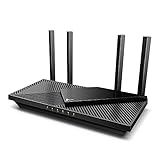

As an Amazon Associate we earn from qualifying purchases. Prices and availability are shown on Amazon.
FAQ
Should the router sit on the floor?
Generally no. A higher position tends to reach more of the room, and the floor often has furniture and other items in the way.
Does the router have to be next to the modem?
Not always. A longer network cable can connect a router in a better position to the modem, though some setups combine both in one unit and are less flexible. Check the maker’s instructions.
Do I need to angle the antennas?
Follow the maker’s guide. Where antennas can move, some people point one upright and one sideways so devices at different heights each have a good path, but your model may differ.
Will moving the router change my internet speed?
Your plan from the provider sets the upper limit. Placement affects how much of it reaches each device, mainly over wireless. Results vary with your home and devices.
Should I switch the router off at night?
That is a personal choice. Some people do so to save energy, but check the provider’s current instructions, since certain services such as phone lines may depend on the equipment staying on.
What is the best height to mount a router?
Higher is generally better, because signal spreads outward and downward from the antennas. A shelf or wall mount at around chest height or above works well in many homes. Keep it clear of metal and thick furniture, and make sure the device has airflow around it.
Does a router in a closet or cabinet reduce coverage?
Often yes. Walls, doors and shelving block and weaken the signal, and enclosed spaces can trap heat. Moving the router into the open, ideally near the middle of the living areas, usually improves coverage. If cables force a location, try a short Ethernet run to a better spot.
Is 2.4 GHz or 5 GHz better for far rooms?
The 2.4 GHz band usually reaches farther and handles walls better, so it often suits distant rooms and simple devices. The 5 GHz band is faster at close range. Many routers manage both under one name, and you can test each band in the room that gives trouble.
How many devices can a home router handle?
Most modern routers can handle dozens of connected devices, but speed shares across active users. Smart home gadgets use little bandwidth, while streaming and gaming use much more. If many devices struggle at once, consider a newer router, a mesh system or wired connections for the heavy users.
Can I use two routers to improve coverage?
You can, but setup matters. A second router should usually be configured as an access point, connected by Ethernet, rather than as a second network behind the first. Follow the manufacturer’s guide, and consider a mesh kit if you want simpler setup and roaming between units.
The Short Version
Place the router in a central, raised, open spot and keep it away from thick walls, metal objects and water. Try a few positions by walking through the home and noting where pages load well. Move in small steps until the weakest room improves, and add an extra access point if one position cannot cover everything.